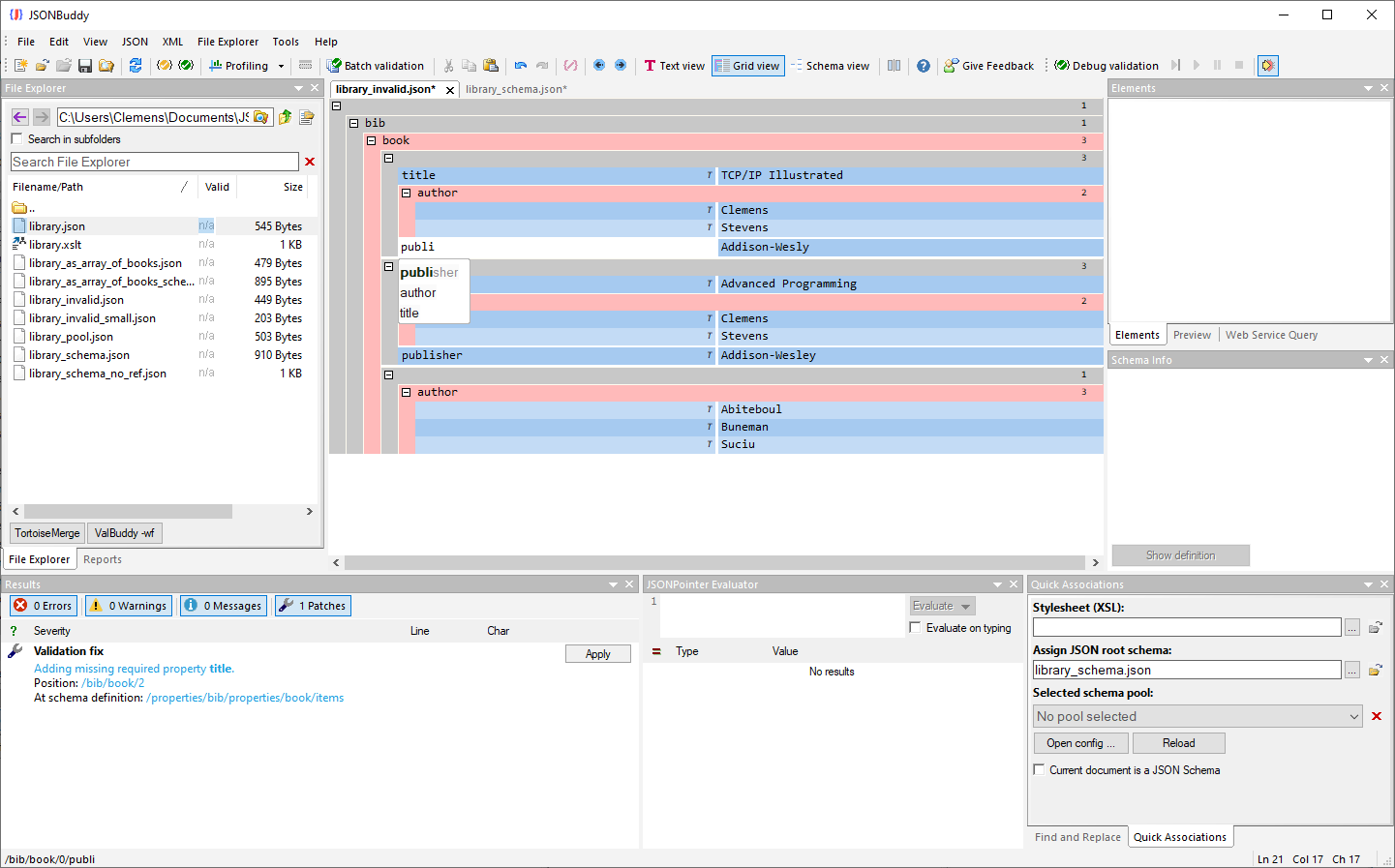
Use the grid view in JSONBuddy to open and edit well-formed JSON documents. The grid editor also provides JSON specific syntax-coloring and intelligent auto-completion. Of course all of the standard editor functionalities like copy-paste and find or replace are also available in the gird editor. You can use the "Grid view" command from the toolbar or from the View menu to switch to the grid editor at any time. If the JSON content contains syntax errors the text view will show the results of the well-formed check. You need to resolve all of them before you can activate the grid editor for JSON.
Expand and collapse objects and arrays
The plus and minus signs in the left corner of any JSON object or array allows to collapse and expand any element. The collapsed status of any child object will be remembered. On expanding any parent element all children will be displayed according to their previous state. Please use the "Collapse selection" command from the context menu to collapse the current selection and all children. Use the "Expand selection" command to expand all of the current selection.
Next to any parent property, the number of child nodes are displayed to the right:
Setting and moving the selection
A single click using the left mouse button selects any element in the grid editor. You can then move the current selection with the keyboard arrow keys (up, down). Please take a look at the samples below to learn more about the different selection states:
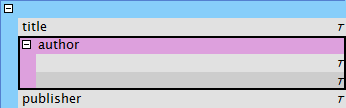 In this case the complete "author" array is selected. Any copy/paste operation would affect the whole array. Pressing Delete would also remove the complete array from the grid view.
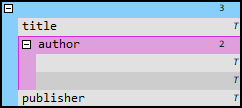
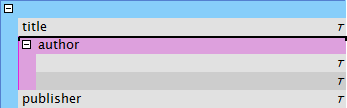 This selection points to the upper insertion location of the "author" array. A paste operation would insert any content right before the "author" array.
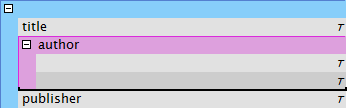 In this case the lower insertion point is selected. A paste operation would insert any content right after the "author" array.
Extending the selection with SHIFT and CONTROL keys
You can extend the current selection using the mouse together with the SHIFT and CONTROL keys. Holding down the SHIFT key will select all elements at the same level between the current left mouse button click position and the existing selection. Holding down the CONTROL will only add a single element next to the current selection.
Drag and drop
Holding down the left mouse button at the current selection and moving the mouse will start a drag and drop operation. The cursor will turn into a hand to signal that a drag and drop operation is now executed. Release the left mouse button at the position where you want to move the current selection. In the picture below the object will be moved between the first and the second element of the "author" array:
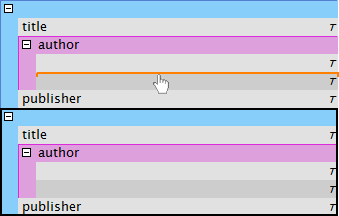 The drag and drop position is shown in orange and follows the same style as the selection insertion points from above.
Quick editing using the TAB and ENTER keys
The TAB and ENTER keys can be used to quickly move the edit field and to insert a new value. The TAB key will move the edit field to the next possible name, caption or value. You can immediately continue editing at the next JSON content. The ENTER key will insert a new value right after the current edit field.
Set the type of a JSON value
A JSON value can have one of the following types: string, number, boolean and null. The selected type affects how the JSON content is written as text. Only the string type will get surrounding quotes. You set the type of a value using the selection field on the right side of the name area:
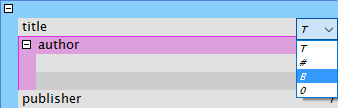 A single click at the existing symbol will show the selection field. T = string, # = number, B = boolean, 0 = null
Context menu
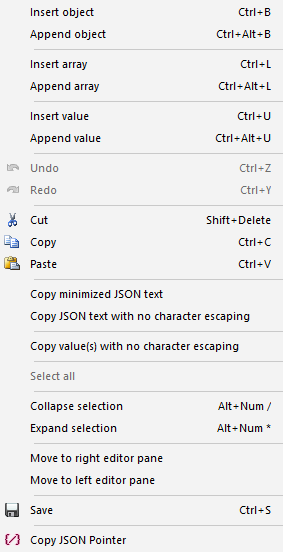
Use the context menu for the most common tasks while editing your JSON data. You can also see the currently assigned keyboard shortcuts of the commands from there. The context menu will open after a click with the right mouse button.
|
Command
|
Description
|
|
Copy value(s) with no character escaping
|
Copy all selected JSON values from the same level in Grid view without any JSON escaping.
|